Submission Errors and Troubleshooting
How Does ENA Validate My Submitted Files?
When you submit read data, your files are stored and accessioned within Runs. The files must first be uploaded to your Webin account’s upload area; after you complete the submission, several validation procedures are applied to them. If validation succeeds the files are archived, and if it fails all account contacts are notified of the errors.
Most of the errors below do not require you to repeat the whole submission — uploading a corrected file, and updating its MD5 value where it changed, is usually enough. After you correct a submission it can take 24 hours or longer for the fix to register and for the error notifications to stop.
If your error is not described on this page, contact ENA through the support form.
Why Did I Get An ‘Invalid File Checksum’ Error?
If this error occurs, you will receive an email containing something similar to the below:
FILE_NAME        | ERROR                 | MD5                              | FILE_SIZE | DATE                 | RUN_ID/ANALYSIS_ID
mbr_depth_05.bam | Invalid file checksum | 594934819a1571f805ff299807431da4 | 895557023 | 20-DEC-2016 14:02:50 | ERR1766300
The checksum is a means of checking a file has been uploaded in its entirety. It is a 32-character string calculated from the file, and is unique to that file. ENA recalculates the MD5sum after you complete your submission and confirm that it matches the value you registered. Therefore, if the upload procedure fails to deliver the full file, this will be evident from the checksum. You may have calculated this value previously and included it in your submission: you can see the value you registered in the notification email, as is the case above. Alternatively, if you used the graphical Webin File Uploader program, the MD5 will have been calculated automatically for you.
The error could indicate any of the following:
A failure in the file transfer process as described
The MD5 value was not registered in lower case letters
The wrong MD5 value was registered in the first place
Depending on the cause of the error, there are two possible solutions.
Please see How Do I Correct An MD5 Value? for instructions on calculating the MD5 value of your local copy of the file and comparing it with the value originally registered.
If the values match, the file is likely corrupted. If they do not match, the registered MD5 value is incorrect.
In either case, refer to the relevant section below for instructions on how to resolve the issue.
Corrupted File: Upload Again
If you recalculate the MD5 value of you file locally and it matches the value you registered, it is likely the file upload was incomplete or corrupt. You therefore need to reupload the file. Once this is done, the file should be automatically accepted within 24 hours with no further action taken.
Please see How Do I Re-Upload A File? for information on how to replace the uploaded file.
Wrong MD5 Value Registered: Register a New One
If you recalculate the MD5 value of your local file and it does not match the value you registered, this will be the root of the problem.
You will need to re-register the MD5 value. Please see How Do I Correct An MD5 Value? for information on how to do this.
If you have many runs to update, you may wish to do this programmatically, by submitting corrected XML versions of your runs. See Reasons for Updating Run XML.
Why Did I Get A ‘Number Of Lines Is Not A Multiple Of Four’ Error?
You will receive an email resembling the below if this error occurs:
FILE_NAME            | ERROR                                                                            | MD5                              | FILE_SIZE  | DATE                 | RUN_ID/ANALYSIS_ID
SOC9/MCONS1_R1.fq.gz | File content missing or malformed, Number of lines in fastq is not multiple of 4 | c2f8455c1a024cfb96a6c91f5d71f534 | 1358349886 | 01-DEC-2016 03:12:35 | ERR1755094
This error is specific to FASTQ files: each read record in such a file should comprise exactly four lines, none of which should be blank. Whitespace characters may only occur in the identifier line and are discouraged. The FASTQ format is as follows:
@<run accession>.<spot index> [<spot name>][/<read index>]
<bases>
+
<phred qualities, ASCII encoded starting with '!' (33)>
If your file does not match this format it may have started incorrectly formatted, or may have become corrupted in the upload process.
You can replicate the check you run on your file locally from the command line:
$ zcat <file>.fq.gz | grep '[^[:space:]]' | wc -l
This command will output the amount of lines in the file, after removing any blank lines. Please note that blank lines are considered a violation of the FASTQ format, as empty reads are not informative.
If the line is count divisible by four, it is likely the file was corrupted during upload and should be reuploaded. If it is not divisible by four, you should discover why, correct your file and reupload.
Note
If you reformat your file and then reupload it, you will also need to re-register the checksum. See the How Do I Correct An MD5 Value? for information on how to do this.
Why Did I Get An ‘Invalid File Content’ Error?
If an invalid file content error occurs, you will receive an email with the below message:
FILE_NAME                | ERROR        | MD5                              | FILE_SIZE | DATE                 | RUN_ID/ANALYSIS_ID
UFMG-CM-Y030_R1.fastq.gz | Invalid file content | 2da9b9c9bb8833c14b103e0de123829c | 137298909 | 13-JUN-2020 12:51:29 | ERR2299965
Submitted files content has not been validated. There are two possible reasons for this happening:
There was a delay during the processing of your run files causing the error to be reported
The content of the read file submission does not meet ENA’s validation standard
First please wait 1 week for the files to be processed. Sometimes your Run records may be affected by a delay in processing your submission, and you will receive the error email before the run processing is completed.
If, after 1 week, the run record is still failing, you can check and update the file content, and then re-upload your run file. Please refer to the guide to Accepted Read Data Formats to help identify your issue.
If you cannot find a problem with your read file contents, please contact the ENA helpdesk.
Updating a run file
Note that if you uploaded the original file to a subdirectory in your submission area, you must also upload the new file to this subdirectory. The processing pipeline expects to see the file for your run in the originally specified location, so this must be maintained. You can check what path the pipeline is expecting to see by referring to the ‘FILE_NAME’ field of the error message: this will contain the full path. See How Do I Re-Upload A File? for information on how to correctly upload your file.
Note
If you reformat your file and then reupload it, you will also need to re-register the checksum. See the How Do I Correct An MD5 Value? for information on how to do this.
Read Name Problems In FASTQ Files
Two properties of the read names themselves are a frequent cause of this error:
Read names which are too long. A read name may be at most 256 characters. Where your names encode a large amount of information, shorten them and record that information in the run or experiment metadata instead.
Read names which are not unique. The same read name must not occur more than once within a file.
If you cannot tell which applies, contact the ENA helpdesk with the run accession and ENA can check the processing logs for the specific reason the file was rejected.
Correcting this is not a matter of re-uploading the file. The failed runs and experiments must first be cancelled, after which the corrected files can be submitted against the same study and sample accessions. Use new experiment and run aliases which do not clash with the cancelled submission; the file names themselves can be reused. The corrected submission will receive new run and experiment accessions. See Removing and Suppressing Data for how to request the cancellation.
Why Did I Get A ‘Missing File’ Error?
If a missing file error occurs, you will receive the below message:
FILE_NAME                | ERROR        | MD5                              | FILE_SIZE | DATE                 | RUN_ID/ANALYSIS_ID
UFMG-CM-Y030_R1.fastq.gz | Missing file | 2da9b9c9bb8833c14b103e0de123829c | 137298909 | 13-JUN-2020 12:51:29 | ERR2299965
Submitted files occasionally go missing and must either be replaced or resubmitted.
You should reupload the file to your submission area. Note that if you uploaded the original file to a subdirectory in your submission area, you must also upload the new file to this subdirectory. The processing pipeline expects to see the file for your run in the originally specified location, so this must be maintained. You can check what path the pipeline is expecting to see by referring to the ‘FILE_NAME’ field of the error message: this will contain the full path. See How Do I Re-Upload A File? for information on how to correctly upload your file.
How Do I Correct An MD5 Value?
If the MD5 value registered for your read file is incorrect, you can supply a corrected version. To do this:
Log into the Webin Portal
Go to the ‘Run Files Report’
Enter the erroneous run accession into the search field
Identify the run, then select its ‘Action’ box and choose ‘Edit run XML’
You will be presented with the run in XML format: find the
<FILE>elementsThere may be one or more
<FILE>elements, e.g. if you have submitted paired FASTQ files. Find the relevant one by reference to its ‘filename’ valueRemove the ‘checksum’ value for the errored file(s) and enter the correct value. The checksum is highlighted in pink in the image shown below:
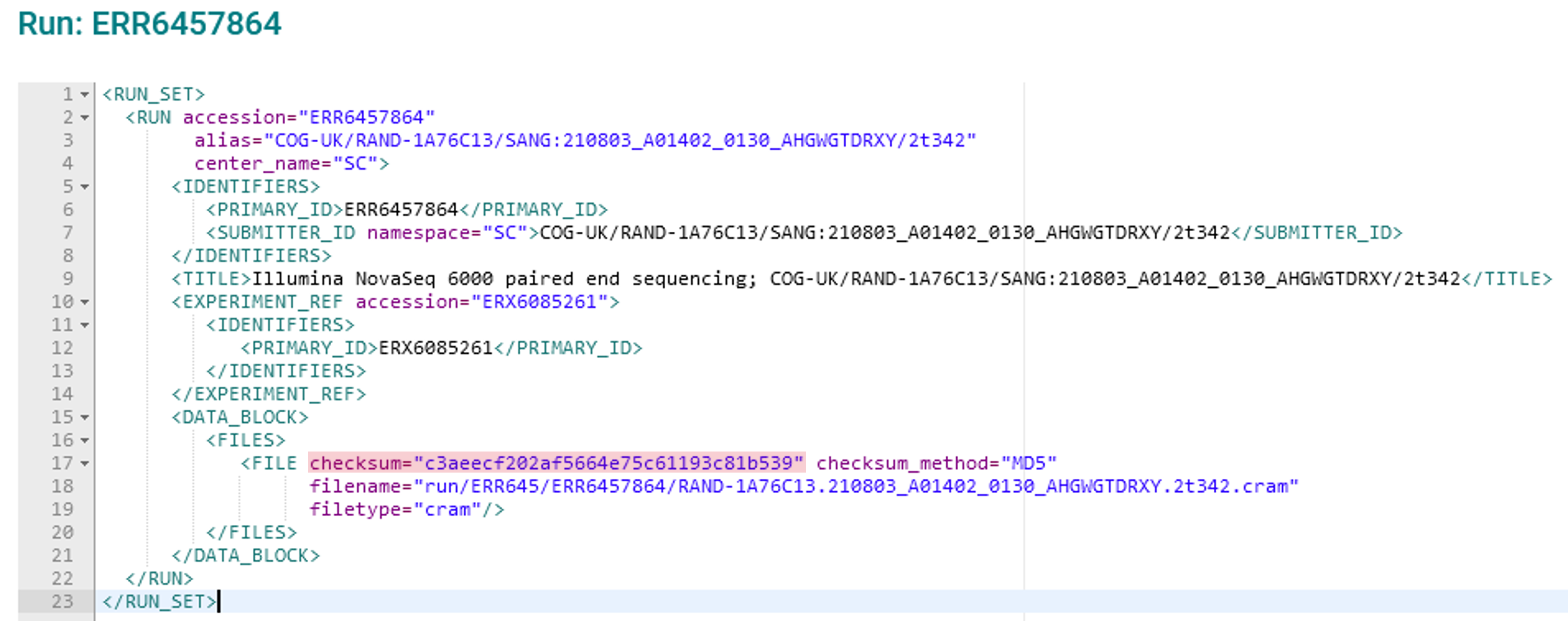
When editing the checksum value, change only the 32-digit string: do not remove the quotation marks, the word ‘checksum’, or any other parts of the XML
Click ‘Save’ at the bottom of the pop-up
Once completed, your file will be re-validated, usually within 24 hours.
Calculating the MD5 value you need can be done natively from the command line in Mac/Linux. One of the following commands will work, if you supply the correct filename:
$ md5sum mbr_depth_05.bam
594934819a1571f805ff299807431da4  mbr_depth_05.bam

$ md5 mbr_depth_05.bam
594934819a1571f805ff299807431da4  mbr_depth_05.bam
For Windows users, 3rd party tools can be found to calculate MD5 values.
How Do I Re-Upload A File?
If your error requires a new version of the file be uploaded, how you do this depends on where the original file was placed in your Webin upload area. You should first consider whether your file was originally uploaded to a sub-directory. You can tell by referring to the original error message, looking out for the ‘FILE_NAME’ column. The below error describes a file which was uploaded to a subdirectory:
FILE_NAME            | ERROR                                                                            | MD5                              | FILE_SIZE  | DATE                 | RUN_ID/ANALYSIS_ID
SOC9/MCONS1_R1.fq.gz | File content missing or malformed, Number of lines in fastq is not multiple of 4 | c2f8455c1a024cfb96a6c91f5d71f534 | 1358349886 | 01-DEC-2016 03:12:35 | ERR1755094
You can tell this was uploaded to a subdirectory because the actual filename ( MCONS1_R1.fq.gz ) is preceded by a directory name and a ‘/’ character ( SOC9/ ). The replacement file must be uploaded to this same subdirectory, as this is where the processing pipeline expects to find it. Having determined this, refer to the relevant section below.
In either case, you may need to update the MD5 value if the originally registered value was correct for the originally uploaded file. If you need to update the MD5 value, please refer to How Do I Correct An MD5 Value?.
If Your File Is Not In A Subdirectory
Upload the replacement file to the top level of your Webin upload area, using any of the methods described in Uploading Files To ENA.
If Your File Is In A Subdirectory
Upload the replacement file into that same subdirectory, using any of the methods described in Uploading Files To ENA.
If using a command line FTP client: once you are connected to the server, use the ls command to view the content
of the directory and the cd <directory-name> command to move into the required location.
Once you arrive in the desired directory, proceed to upload the files.
A graphical client such as FileZilla lets you navigate to the subdirectory in its remote-site panel before transferring
the file.
Note
If runs fail due to a user error, and not addressed within 180 days, they will automatically get cancelled.